Digital Agency

Growth Focus
  • Helping Businesses Grow Worldwide — SEO Services That Drive Visibility,     High-Performance Website Development,     PPC Marketing for Better Reach,     Digital Marketing Built for Growth,     Social Media That Builds Your Brand,     Smart Solutions. Real Business Growth.

2026

website designing services

Website Designing Services Explained: What You Actually Get (And What to Watch Out For)

Someone quotes you ₹12,000 for a website. Someone else quotes ₹85,000. Both are calling it website designing services. You have no idea why the gap exists, what either one actually delivers, or whether you are about to waste money on something that looks nice but does nothing for your business. This confusion is completely normal. Most people hiring a designer for the first time do not know what is standard, what is optional, and what sounds good on a proposal but means very little in practice. This article covers all of it — what is actually included, how to read a package, what red flags look like, and what smart questions to ask before you pay anyone a single rupee. What Website Designing Services Actually Include At the core, website designing services cover the planning, visual design, and development of your website. But those three words hide a lot of detail that most agencies quietly skip over. Here is what a proper engagement should cover: The Core Deliverables Discovery and planning — A good agency starts by understanding your business, your audience, and what you want the website to do. This is not a formality. Without this step, you get a website that looks decent but serves no real purpose. Wireframes — A wireframe is a rough black-and-white layout that shows where each element will sit on the page — buttons, text blocks, images, forms. Think of it like an architectural floor plan before construction begins. Not every agency includes this, but the ones who skip it often deliver websites that feel disorganized. Visual design — This is the actual look of the website. Colors, fonts, imagery, spacing, and how everything fits together. This stage usually happens in design tools like Figma or Adobe XD before a single line of code is written. Development — Once the design is approved, it gets built. This means turning those visuals into a working website using code or a platform like WordPress, Shopify, or Webflow. Responsive design — Responsive means the website automatically adjusts its layout to look correct on phones, tablets, and desktops. This is not a premium feature anymore. It is standard. If someone charges extra for it, that is a red flag. Basic on-page setup — Proper page titles, meta descriptions (the short text that shows under your website on Google), image alt text (text descriptions that help Google and visually impaired users understand your images), and clean URL structure. This is often called “SEO-ready” — it does not mean your website will rank on Google, it just means it is technically set up properly so ranking is possible. Testing and launch — Checking that everything works on multiple browsers and devices before the site goes live. That is what a complete service looks like. Anything missing from this list is a conversation you need to have before signing. What Most Agencies Won’t Tell You Upfront Here is the thing most service providers gloss over in their proposals. Do you own the website? After the project ends, do you own the design files, the code, and the hosting account — or does the agency hold onto them? Some agencies keep the Figma files or source code and you only get a “live website.” If you ever want to move to a different vendor, you start from scratch. Always ask for full ownership of all deliverables. What does “5 pages” mean exactly? A “page” in most proposals means a single URL — like your Home page, About page, Services page, Contact page. But sections within a page, popups, forms, sliders — those are usually not counted separately. Ask for a clear list of exactly which pages are included. What happens if you stop paying? If your website is hosted on the agency’s server and they handle the renewal, they have leverage over you. Your website could go offline if the relationship breaks down. Always own your own domain name (the web address) and hosting account. The agency can manage it, but your name should be on the account. These are the things competitors rarely talk about. Knowing them upfront saves you from very expensive surprises later. Types of Website Designing Services You Will Come Across Not every website is built the same way. Understanding the basic types helps you figure out what you actually need versus what you are being sold. Template-Based vs Custom Design A template-based website uses a pre-built design layout. The designer customizes it with your colors, logo, and content, but the underlying structure was designed by someone else. These are faster and cheaper to build. They work well for most small businesses, freelancers, and startups. A custom-designed website is built from scratch specifically for your brand. Every layout decision, every visual element is created for you. It takes more time, costs significantly more, and makes sense when your brand has very specific requirements or when you are at a stage where standing out from competitors is critical. Neither is automatically better. The question is what your business actually needs right now. Static vs Dynamic Websites A static website shows the same content to every visitor and does not change unless someone manually updates it. Portfolio sites, small business brochure sites, and event pages often work this way. A dynamic website pulls content from a database and can show different things to different users, update frequently, or allow visitors to log in, place orders, or submit content. E-commerce stores, news websites, and platforms all need this. Dynamic sites are more complex and cost more to build and maintain. Do not pay for dynamic functionality if a static site solves your problem. How to Read Website Designing Packages Without Getting Confused Most agencies offer tiered packages — basic, standard, and premium. Here is what typically separates them: Feature Basic Standard Premium Number of pages 1 to 5 5 to 10 10+ or unlimited Design type Template-based Semi-custom Fully custom Responsive design Yes Yes Yes Contact form Yes Yes

Website Designing Services Explained: What You Actually Get (And What to Watch Out For) Read More »
What Is Web Design

What Is Web Design? A Clear Guide to How Websites Get Built, Styled, and Structured

Someone lands on a website. Within three seconds, they either stay or leave. They do not read the code behind it. They do not check which platform it runs on. They just feel it. And that feeling is web design at work. Web design is the process of planning and creating everything a visitor sees and interacts with on a website. That includes the layout, colors, fonts, images, buttons, and how all of it fits together. This article covers what web design actually means, what its key elements are, how it differs from web development, and how to figure out what you actually need for your situation. What Is Web Design and What Does It Actually Cover? Web design is the discipline of creating the visual and functional experience of a website. It is not just about making things look nice. It is about making things work for the person using them. Think of it like designing a physical shop. The way products are placed, how easy it is to find the billing counter, whether the lighting feels welcoming, all of that is design. A website works the same way. Every choice, from where a button sits to what color it is, shapes how a visitor feels and what they do next. A well-designed website does not just look good. It helps visitors accomplish what they came to do, faster and with less friction. That is the whole game. The Core Elements of Web Design Knowing the name is one thing. Understanding what each element actually does in practice is where most explanations stop short. So here is each one, explained plainly. Layout Layout is how content is arranged on a page. It decides what a visitor sees first, what they notice second, and where their eye travels from there. A good layout creates a natural reading path without the visitor even noticing it is happening. The most common approach is the grid system, where content is organized in columns and rows to keep things visually aligned. Bad layout makes a page feel cluttered or confusing. Good layout makes a page feel effortless. Typography Typography refers to fonts and how text is presented on screen. This includes font style, size, line spacing, and how headings differ from body text. Typography affects readability more than most people expect. Text that is too small makes users squint. Too many different font styles make a page feel chaotic. A clean, consistent font system signals that the site is trustworthy and thought through. Color Color is not decoration. It is communication. Colors create mood, guide attention, and carry meaning. Red can suggest urgency. Blue tends to signal trust. Green often connects to health or growth. Web designers build a color palette, meaning a set of two to four colors that work together consistently across the entire site. A good palette is accessible (readable by people with color vision differences) and aligned with what the brand is actually trying to communicate. Images and Visual Content Images, icons, illustrations, and videos are all part of web design. They break up text, show what words cannot, and often create the first emotional response a visitor has before they read a single sentence. The choice of visuals matters a lot. Generic stock photos make a site feel hollow. Real, specific imagery makes it feel genuine. Icons and illustrations, when done well, make navigation faster and more intuitive. Navigation Navigation is how users move through a website. This includes the main menu, footer links, breadcrumbs (those small trails showing where a user is on the site, like Home > Blog > Article), and call-to-action buttons. Poor navigation is the fastest way to lose a visitor. If someone cannot find what they need in a few clicks, they leave. Good navigation is simple, predictable, and consistent across every single page. White Space White space, also called negative space, is the intentional empty area between elements on a page. It sounds minor. It is not. Crowded pages feel stressful to look at. Pages with breathing room feel premium and easy to read. White space is part of why certain well-known tech websites feel expensive before you even read what they are selling. Types of Web Design Not all websites are built using the same approach. The type of design used depends on the site’s purpose, its audience, and the devices it needs to work on. Responsive Web Design Responsive design means the website automatically adjusts its layout based on the screen size being used. On a desktop it might show three columns. On a phone, it stacks into one. The layout responds to the device. This is the most widely used approach currently because the majority of web traffic comes from mobile devices. A site that is not responsive will look broken on phones and will also rank lower in Google search results. Adaptive Web Design Adaptive design creates separate, fixed layouts for specific screen sizes. Instead of one layout that stretches and shrinks fluidly, there are multiple versions, and the site detects which one to show the visitor. It gives designers more precise control, but requires significantly more design and development work. Responsive design is the standard for most websites. Adaptive design is used in specific cases where that extra control genuinely matters. Static Web Design A static website has fixed pages. The content does not change unless someone manually goes in and updates the files. These sites are fast, simple, and work well for portfolios, landing pages, or small informational sites. Dynamic Web Design A dynamic website pulls content from a database and can show different things to different users or update automatically. E-commerce stores, news websites, and any platform with user accounts are dynamic. The design interacts with live data to create a constantly changing experience. What Does a Web Designer Actually Do Day to Day? Most explanations of web design skip this entirely. Here is what the actual work looks like. A web designer typically starts

What Is Web Design? A Clear Guide to How Websites Get Built, Styled, and Structured Read More »

how to create a website for free

How to Create a Website for Free (Without Getting Burned by the Fine Print)

Most people who search how to create a website for free end up more confused than when they started. Too many platforms, too many asterisks next to the word “free,” and nobody clearly explains which one actually fits your situation. Here is the truth: you can build a real, working website without spending anything. But “free” works differently across platforms, and picking the wrong one wastes time and sets wrong expectations. This article breaks down every real option, what free actually includes, and which tool fits your goal — whether you are a freelancer, small business owner, student, or someone who just wants a site up fast. What “Free” Really Includes (and Where the Catch Lives) Before picking a platform, understand what you are actually getting. Every major website builder has a free plan. But they are not all built the same. Some free plans are genuinely functional. Others are basically demos dressed up to look like products. Here is what “free” typically means across most platforms: None of this is technically hidden. But it is buried where most people do not look. And it matters a lot depending on what you are building. If you are launching a business website, a platform’s logo slapped on your homepage can damage credibility faster than having no site at all. Knowing this before you pick saves a lot of frustration later. How to Create a Website for Free: 5 Platforms That Actually Work Not every “free website builder” deserves your time. These five do, for different reasons. Wix Free Plan Wix is the most beginner-friendly drag-and-drop builder available. The free plan includes 500MB of storage, a large library of templates, and enough tools to put together a decent portfolio or landing page. The trade-off: your URL ends up as username.wixsite.com/sitename. There is also a Wix ad banner at the top of every page. For a personal project or testing an idea, that is manageable. For a business, it looks unprofessional. Best for portfolios, hobby sites, and testing ideas before committing money. WordPress.com Free Plan This one trips people up because of the name. WordPress.com is a hosted service — meaning they handle everything for you. WordPress.org is separate software you install on your own paid hosting. They are related but not the same thing. The WordPress.com free plan includes 1GB of storage and a solid block-based editor for writing content. It does not allow third-party plugins (extra features you install to add functionality) or custom themes on the free tier. But for a blog or a simple personal site, it works well. Best for bloggers, writers, and anyone who wants a clean content-focused site with room to grow. Google Sites Google Sites is the most underused free website tool most people have never seriously considered. It is completely free, has no ads, no platform branding on your published site, and connects directly to Google Drive so storage is not a concern. The trade-off is design flexibility. Google Sites works in structured sections, so you cannot make it look like anything you want. But it loads fast, looks clean on mobile, and takes almost no time to get live. For a school project, an event page, an internal team site, or a lightweight portfolio, it does the job without making you fight the tool. Best for simple pages, internal tools, Google Workspace users, and anyone who just needs something live today. Weebly Free Plan Weebly is owned by Square and has a simple drag-and-drop editor similar to Wix. The free plan includes 500MB of storage and some basic e-commerce features, which is unusual for a free tier. Your URL will be yourname.weebly.com and there is Square branding in the footer. Best for hobby shops or anyone who wants basic e-commerce features without paying upfront. Hostinger Free Tier Hostinger is primarily a hosting company, not a website builder. Their free hosting option is very limited and mainly useful for low-traffic personal pages or learning the basics of web hosting. If your long-term plan involves a proper paid Hostinger setup, starting free helps you get familiar with how their dashboard works. Best for developers or learners testing a site before committing to hosting. Here is a quick side-by-side so you can see the differences clearly: Platform Free URL Type Platform Branding Free Storage Best Use Case Wix username.wixsite.com/site Yes, banner at top 500MB Portfolios, idea testing WordPress.com yoursite.wordpress.com Yes, footer bar 1GB Blogs, personal sites Google Sites sites.google.com/view/site None Unlimited (Drive) Simple pages, internal tools Weebly yourname.weebly.com Yes, footer 500MB Hobby shops, basic e-commerce Hostinger Limited subdomain Yes Very limited Learning, technical testing How to Create a Free WordPress Website Step by Step This is specifically for WordPress.com. If you have seen the words “WordPress” and “free” together and wondered how it works, here is the exact process. A basic site takes under 30 minutes. The free plan will not let you install custom plugins or edit your theme’s code. But as a starting point, it is more capable than most people expect. How to Create a Website on Google for Free Google Sites is worth its own section because a lot of people do not know it exists or underestimate what it can do. If you have a Google account, you already have access. No setup needed, no new subscription, nothing to install. Here is how to get a site live: The design is more structured than Wix or WordPress, but it does not require any technical skills. What you get in exchange for limited design control is speed, reliability, Google’s infrastructure, and zero branding on your live site. For many people, that is a fair trade. Can You Get a Free Website with Free Domain and Hosting? This is one of the most searched questions in this space, and it deserves a direct answer. Hosting: If you use Wix, WordPress.com, or Google Sites, hosting is built into the free plan. You do not pay for it separately. The platform manages everything on

How to Create a Website for Free (Without Getting Burned by the Fine Print) Read More »

how to create a website

How to Create a Website Step by Step (Even If You’ve Never Done It Before)

Most people spend more time worrying about building a website than actually building one. They land on three different articles, hit a wall of confusing terms, and close the tab. If you are searching for how to create a website and still feel lost, that is the most normal thing in the world. This guide is the one place you need to be. Whether you are a freelancer, a business owner, or just someone who wants to put something online, you will walk away knowing exactly what to do, what to skip, and how to make a real decision. No filler. No upsell. Just the full picture. What You Need Before You Create a Website Before touching any tool or platform, three things need to be clear. Get these wrong and you will waste hours fixing decisions that should have taken five minutes. A Domain Name A domain name is your website’s address on the internet. It is what people type to find you, like yourname.com or yourbusiness.in. You rent it annually, not buy it permanently. Costs typically run between $10 and $20 per year depending on the extension and registrar. Keep it short. Keep it easy to spell out loud. Avoid hyphens and numbers. If your first choice is taken, try a different extension (.in, .co, .net) before you start forcing awkward alternatives. Website Hosting Hosting is the space where your website files live. When someone visits your domain, their browser pulls your files from that server and shows your site. Without hosting, a domain is just an address with nothing behind it. For most beginners, shared hosting works fine. Shared hosting means your site sits on a server alongside other websites, which keeps the cost low, usually $3 to $15 per month. Think of it like renting an apartment in a building instead of owning the whole building. A Clear Purpose This is the one step most people skip, and it causes more problems than anything technical. Before you build anything, answer this honestly: what do I want this website to actually do? Sell something? Book clients? Share your work? Present your business? Your answer changes your platform choice, your page structure, and your design needs. A portfolio site and an e-commerce store are completely different builds even if both are called a website. Get clear on this first, and everything else gets easier. How to Create a Website: Which Path Is Right for You There is not one way to do this. There are four. Each one suits a different kind of person, and picking the wrong one is where most beginners lose time. Method Best For Skill Required Monthly Cost Range Control Level Website Builder (Wix, Squarespace) Small businesses, personal sites None $13 to $40 Limited WordPress (Self-Hosted) Blogs, growing businesses, serious projects Low to medium $5 to $20 Full AI Website Builder Quick launches, simple sites None $10 to $30 Limited Hire a Developer Complex or custom needs None from you $500 to $5000+ Full Note: these are ballpark figures. Most platforms charge separately for domain, hosting, and premium features. Always read what is included before paying. Website Builders Platforms like Wix, Squarespace, and Hostinger Website Builder give you a drag-and-drop editor. You pick a design, fill in your content, and your site is live. No coding, no server setup. Everything is packaged together. The tradeoff is real. You are working inside someone else’s closed system. If they raise prices, limit features, or shut down, your options are narrow. WordPress (Self-Hosted) WordPress.org, the self-hosted version, powers roughly 40% of all websites on the internet. It is open-source software, meaning free to use, but you bring your own hosting and domain. Setup takes slightly more effort than a builder. But you own your site completely. You can add any feature, move to any host, and grow without hitting artificial walls. AI Website Builder Several platforms now let you describe your website in plain language and an AI generates a layout, design, and draft content in under a minute. Tools like Framer AI and Wix ADI work this way currently. Honest assessment: the structure it builds is usually decent. The content it writes is generic and will need rewriting. Good for removing the blank-page problem. Not a substitute for actually thinking about your site. Hire a Developer If your site needs something genuinely complex, like a custom booking system, a dashboard, or a specific integration, hiring someone is a sensible choice. The downside is cost and ongoing dependency. For simple business or portfolio sites, it is usually not necessary. How to Create a Website from Scratch Using WordPress This is the most flexible method for anyone who wants real control and plans to grow. Here is exactly how to do it, from zero. Step 1 — Buy a Domain and Hosting Together Go to a hosting provider like Hostinger, SiteGround, or Bluehost. Most offer a free domain for the first year with a hosting plan. Choose a shared hosting plan to start. It typically costs $3 to $10 per month and handles everything a beginner site needs. Step 2 — Install WordPress in One Click Every major hosting provider has a one-click WordPress installer inside their dashboard. Find it, click it, enter your site name and admin credentials, and WordPress is live on your domain in a few minutes. No code. No technical setup. Done. Step 3 — Choose a Theme A WordPress theme controls how your site looks visually. Think of it as the skin. Thousands of free themes are available in the official WordPress theme directory. Paid themes from providers like Astra or GeneratePress cost roughly $30 to $80 as a one-time purchase and tend to be faster and cleaner. Pick something simple. Themes loaded with animations and heavy visual effects often slow your site down, and a slow site loses visitors before they even read a word. Step 4 — Build Your Core Pages Start with four pages: Home, About, Services (or Products),

How to Create a Website Step by Step (Even If You’ve Never Done It Before) Read More »

what is website

What Is a Website? The Simple Explanation You Actually Needed

You open your browser, type something, and a page loads. You scroll, click around, maybe buy something. So what is a website, exactly? It is that entire thing you just used. Most people understand the experience but not the mechanics. And the moment you decide to build a website, buy one, or explain what you need to someone else, the words trip you up fast. Domain, hosting, URL, traffic. Each term feels like it should be obvious but somehow never is. This guide clears all of that up. Plain language, no jargon dumps, no skipped explanations. By the end you will know exactly what a website is, what each piece does, and what to actually think about before you build one. What Is a Website? A website is a collection of related web pages that live at one internet address and belong to one person, business, or organisation. Think of it like a building. The building has different rooms but one front door. The front door is the web address. Each room is a different page. The whole building together is the website. When you visit Nike.com, that is a website. The homepage is one page. The shoes section is another. The cart is another. All of them, connected, under one address, make up that website. The words “web pages” just mean files, mostly HTML files, that a browser reads and displays as the screen you see. HTML stands for HyperText Markup Language. It is the basic language that tells a browser how to structure and show content. One website can have five pages or five thousand. What makes something a website is that those pages are connected, live under one domain, and are accessible through the internet. How a Website Actually Gets to Your Screen This is the part most articles skip entirely. Here is what actually happens in the few seconds between you pressing enter and a website appearing. What Is a Website Domain? A domain is the human-readable address of a website. Things like google.com, amazon.com, or your own business name followed by .com. That is the domain. Behind every domain is a numerical address called an IP address, something like 172.217.14.206. The internet actually runs on these numbers. But since no human wants to memorise number strings, domains were created as readable replacements. When you type a domain name, a system called DNS translates it into the matching IP address. DNS stands for Domain Name System. It is basically the internet’s phone book. You buy domains from domain registrars, which are services that let you register a name, usually for one to two years at a time. Once you own a domain, nobody else can register that exact name. What Is Website Hosting? After you have a domain, your website files still need somewhere to actually live. That is what website hosting is. A hosting company stores your website files on their servers (powerful computers running and connected to the internet around the clock) and makes those files available to anyone who visits your domain. Think of it this way. The domain is your building address. Hosting is the physical space where your stuff lives. If the hosting goes down, your website goes down. That is why hosting quality matters, especially for businesses where downtime means lost customers. What Is a Website URL? A URL (Uniform Resource Locator) is the full address of one specific page on a website. For example: https://www.example.com/contact-us Breaking it down simply: Every page on a website has its own URL. The homepage is usually just the domain. Inner pages have longer paths. When someone shares a link, they are sharing a URL. So a domain is the overall address of a website. A URL is the precise location of one page inside it. Types of Websites and Real Examples Not all websites serve the same purpose. This is where most beginner guides go flat, because the type of website you build changes everything about how you plan, budget, and measure success. Business or Corporate Website This is an informational site for a company. It tells visitors who you are, what you offer, and how to reach you. Law firms, agencies, consultancies, and local service businesses mostly run this type. These sites do not usually sell directly. They exist to build trust and generate enquiries. E-commerce Website Built specifically for selling products online. Amazon, Flipkart, or any brand with an online store falls here. These sites have product pages, shopping carts, checkout flows, and payment systems built in. Blog or Content Website The entire site runs on articles, guides, or videos. Revenue comes from ads, affiliate partnerships, or selling digital products. Most media outlets and personal finance sites follow this model. Portfolio Website Used by freelancers, designers, photographers, and developers to display their work and attract clients. Simple, visual, and personal. One wrong choice here and it looks like every other portfolio online. Landing Page A single page with one goal, usually getting someone to sign up, register, or purchase. Not a multi-page site. Just one focused experience. Businesses often use these for product launches or advertising campaigns. Web Application This looks like a website but works like software. Gmail, Canva, and Notion are web apps. You log in, create things, and save data. The line between website and web app is blurry, but the main difference is that a web app responds to the user and stores personal data in real time. Community or Forum Website Built around users talking to each other. Reddit is the clearest example. The users create most of the content, not the site owner. Knowing which type fits your goal before you start building saves money and prevents the most common mistake: building a site that is half blog, half portfolio, and fully serves neither purpose. Type Main Purpose Selling Online? Example Business Website Build trust, generate leads No Agency, law firm E-commerce Sell products Yes Online store Blog / Content Build audience, earn via

What Is a Website? The Simple Explanation You Actually Needed Read More »

Advantages and Disadvantages of Email Marketing

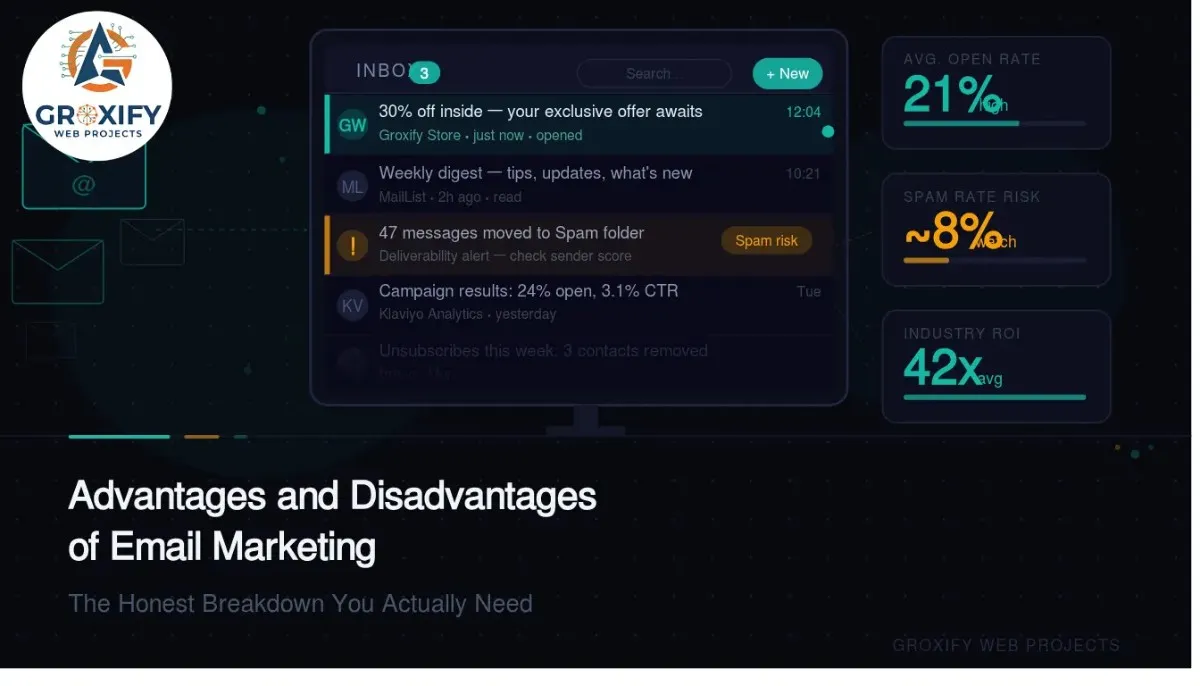
Advantages and Disadvantages of Email Marketing (The Honest Breakdown You Actually Need)

You search for email marketing advice and everyone sounds excited. “It has the highest ROI of any channel.” “Your list is your biggest asset.” All true. But nobody warns you that building that list takes months before a single sale happens. Nobody mentions the emails that quietly land in spam. Or the campaigns that got opened by 8% of people and ignored by the rest. The advantages and disadvantages of email marketing are both very real. Whether you are a business owner deciding if this is worth your budget, a freelancer figuring out if you should offer it as a service, or just someone trying to understand the full picture before jumping in, this article gives you exactly that. No hype, no sugarcoating. What Is Email Marketing (Before We Get Into the Pros and Cons) Email marketing is sending targeted messages to a list of people who have agreed to hear from you. That consent part is not just a nice-to-have. It is the foundation. Without it, you are not doing email marketing. You are spamming. These messages can be anything: a welcome email when someone signs up, a weekly newsletter, a product launch announcement, a discount offer, or even a simple “here is something useful” update. The goal is to stay connected with your audience and, at the right moment, get them to take action. The tool you use is called an ESP, which stands for Email Service Provider. Think Mailchimp, ConvertKit, Brevo, or similar platforms. They handle the sending, tracking, and automation so you do not need any technical background to get started. One thing to understand early: email marketing is not one big blast to your whole list. Done well, it is a series of relevant, timed messages going to the right people at the right moment. The Real Advantages of Email Marketing It Costs Very Little to Start Compared to paid ads, print, or sponsorships, email marketing is genuinely affordable. Most ESPs have a free plan for smaller lists, and even paid plans are priced for small businesses. You are essentially paying for the tool, not for each person you reach. For anyone watching their budget closely, this is a real advantage. The cost to send 1,000 emails versus 10,000 emails is not wildly different, which changes the math compared to most advertising channels. You Actually Own Your Audience This is the one that does not get enough attention. Your Instagram following, your Facebook page, your LinkedIn connections, none of that is truly yours. If a platform changes its algorithm or gets less popular, your reach shrinks and you have no say in it. Your email list belongs to you. You can export it, move it to a different tool, or keep it forever. No third party can cut your access to it. That ownership is the foundation that makes email a long-term asset and not just a tactic. The Return on Investment Is Consistently High Across industries, email marketing delivers one of the strongest returns compared to other digital channels. The exact numbers vary depending on your industry, your list quality, and your content, but the direction is consistent. What drives that return is relevance. An email to people who actually want to hear from you and actually care about what you sell performs very differently from a blast to a random list. The channel is not magic. The relationship behind it is. You Can Personalize Without Doing It Manually Modern ESPs let you send different messages to different people based on what they clicked, what they bought, where they signed up, or how long they have been on your list. This is called segmentation, which means splitting your audience into groups so each group gets content that fits them specifically. Someone who just signed up does not need the same email as someone who has bought from you three times. Email lets you set that up once and let it run automatically. That kind of personalization used to require a full marketing team. Now a solo business owner can do it with a basic email tool. Every Campaign Gives You Data You Can Actually Use With email, you know how many people opened each message (that is the open rate), how many clicked something inside it (the click-through rate, or CTR), how many bought, and how many left your list. Every send is a learning opportunity. You can test two different subject lines on two groups of subscribers to see which one gets more opens. This is called A/B testing. Over time, those small improvements compound into much better performance. Compare that to handing out flyers and having no idea what happened next. It Works Automatically Once You Set It Up Once you build email sequences, they run on their own. Someone signs up at 11pm, they get a welcome email. They abandon a product in their cart, they get a follow-up three days later. You built it once. It works while you sleep. This is called email automation, and it is where the real efficiency comes in. A solo freelancer or small business can punch well above their weight because the system handles the repetitive parts. It Reaches People Directly Social media is noisy. Your post competes with everyone else’s posts, paid ads, trending content, and whatever is happening in the news. An email lands in someone’s inbox. It is personal and direct, and if your subject line earns the open, you have their full attention for a few seconds. People also open email with intent. They are not passively scrolling. They sat down to check their inbox. That different mode of reading makes email a better environment for actual communication than a social feed. The Disadvantages of Email Marketing Nobody Talks About Honestly Building a Quality List Takes Real Time This is where most beginners get discouraged. You cannot start today and have 500 engaged subscribers by next month unless you already have a large audience somewhere. Building a quality list,

Advantages and Disadvantages of Email Marketing (The Honest Breakdown You Actually Need) Read More »

Scroll to Top